
How to Download, Install, and Activate Microsoft Office LTSC 2021 using Office Deployment Tool
Office LTSC 2021 is built for organizations that need essential productivity tools with long-term support and no feature changes over time. It includes classic desktop apps like Word, Excel, PowerPoint, and Outlook, and it's ideal for business environments that prefer stability over constant updates. In this guide, you'll learn how to download, install, and activate Office LTSC 2021 using the official Office Deployment Tool 2021 (ODT) — the recommended method for professional and silent deployments.
System Requirements for Installing Microsoft Office LTSC 2021 Professional Plus on Windows
| Requirement | Details |
|---|---|
| Operating System | Windows 10 or Windows 11 (LTSC is not supported on Windows 8/7 or macOS) |
| Processor | 1.6 GHz or faster, dual-core (x64) |
| RAM | 4 GB or more |
| Disk Space | Minimum 4 GB of free space |
| Display | 1280 × 768 resolution |
| Internet | Broadband internet (20 Mbps recommended for download) |
| Graphics | DirectX 9 or later, with WDDM 2.0 driver (for GPU acceleration) |
Note: Office LTSC 2021 Professional Plus is not available for macOS. Mac users can consider Office Home & Business 2021.
✅ What You Need
| Item | Description |
|---|---|
| Admin Privileges | Required to install Office via command prompt |
| Internet Connection | Required for downloading Office installation files |
| Office Deployment Tool | Free utility from Microsoft used to deploy and install Office |
| Basic Command Prompt Usage | You’ll be running a few simple commands during installation |
How to Uninstall the Previous Version of Microsoft Office
The Uninstallation Process for Windows Users
- Open the “Control Panel”.
- Select “Programs and Features”.
- Find Microsoft Office in the list, right-click, and select “Uninstall”.
- Follow the uninstallation wizard instructions.
Note: The process may take several minutes, depending on your computer’s configuration.
System Restart
After uninstallation, be sure to restart your computer. This will help complete the uninstallation process and prepare the system for installing the new version of Office.
How to Install Microsoft Office LTSC 2021 Professional Plus on Windows
Step 1: Download the Office Deployment Tool (ODT)
What is it?
The Office Deployment Tool allows you to download and install Office using a custom setup file.
- Go to the >Microsoft ODT Download Page
- Click Download.
- Create a new folder in your C: drive called Office2021Setup (e.g., C:\Office2021Setup).
- Then, run the downloaded file and select that folder as the destination when asked where to extract the files.
✅ You should see: setup.exe and sample XML files
❌ You may not see an EULA.txt file — that’s normal.
Step 2: Create a Configuration File
- Open Notepad
- Paste the following code:
<Configuration>
  <Add OfficeClientEdition="64" Channel="PerpetualVL2021">
    <Product ID="ProPlus2021Volume" PIDKEY="XXXXX-XXXXX-XXXXX-XXXXX-XXXXX">
      <Language ID="en-us" />
    </Product>
  </Add>
  <RemoveMSI />
  <Display Level="None" AcceptEULA="TRUE" />
  <Property Name="AUTOACTIVATE" Value="1" />
</Configuration>
Replace the placeholder with your actual product key.
Then go to File > Save As:
- File name:
configuration.xml - Save as type:
All Files - Encoding:
UTF-8
⚠️ Note: Save this file in the newly created Office2021Setup folder.
Step 3: Install Office 2021
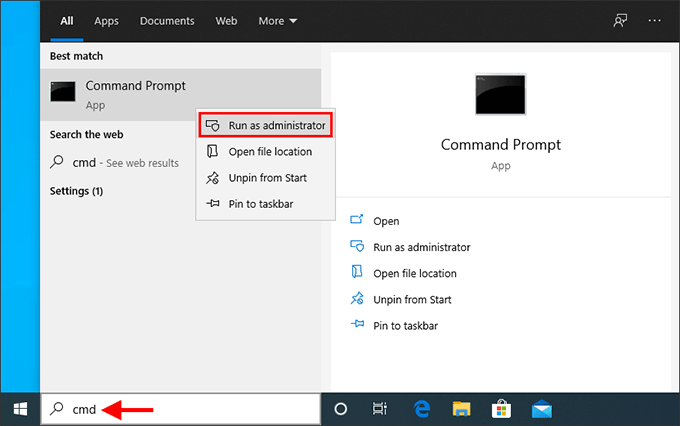
- Open Command Prompt as Administrator. To do this, right-click on it and select "Run as administrator" from the context menu, as shown below.
- In the Command Prompt window, run the command below to go to the folder where you saved the setup files as per below.
(Please copy and paste the code to ensure there are no typos.)cd C:\Office2021Setup
⚠️ Note: If you saved the setup files in a different folder (e.g., Downloads or Desktop), replace the path accordingly.
You should achieve the result below: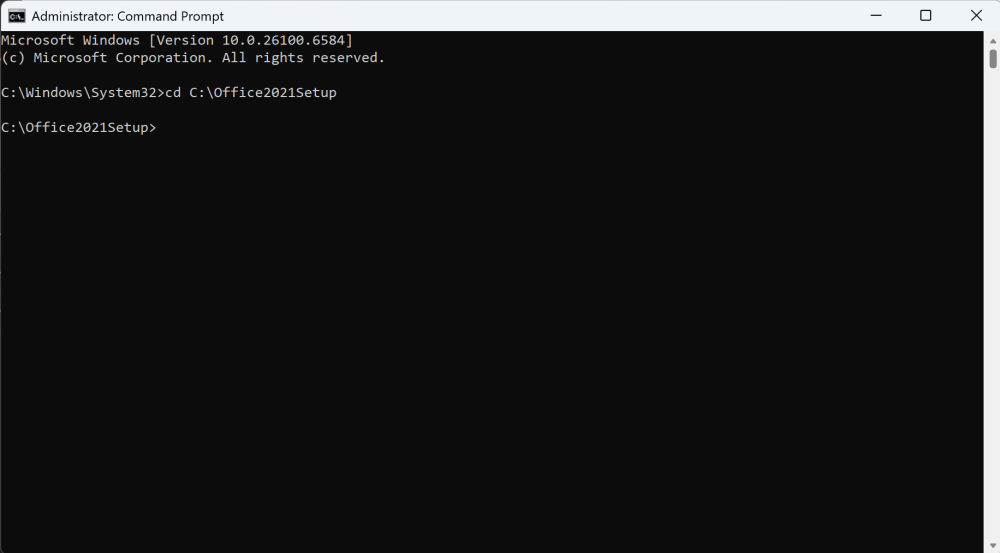
- Next, run the second command as per below to start the installer:
setup.exe /configure configuration.xml
⚠️ Note: This command must be run inside Command Prompt and only works when you're in the correct folder where bothsetup.exeandconfiguration.xmlare located.
You should achieve the result below: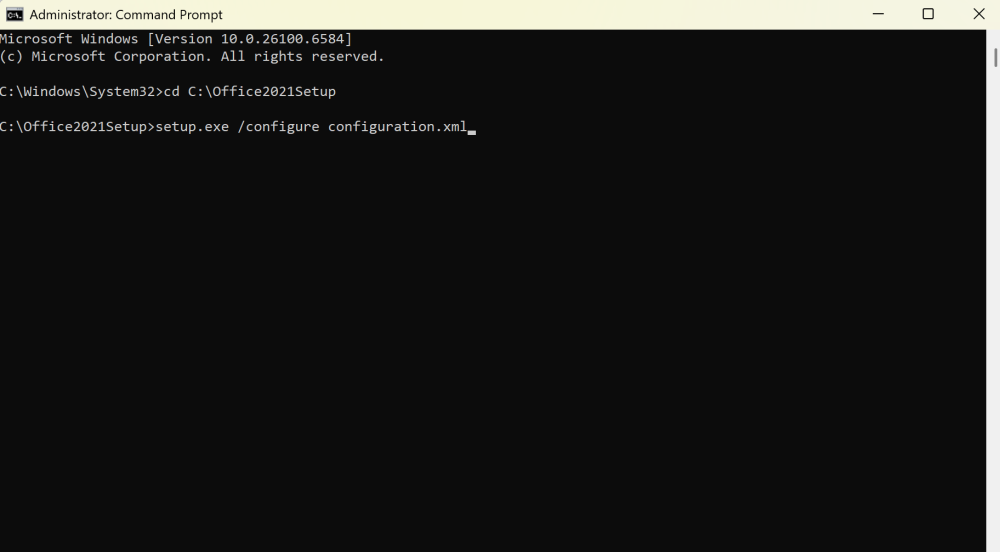


⚠️ Note: You won’t see a typical installer window. It may look like nothing is happening — but Office is downloading and installing silently in the background.
✅ Installation is complete when:
- The command prompt returns to a blinking cursor
- Office apps appear in the Start Menu
- You can launch Word, Excel, etc.
Step 4: Activate by Telephone
- Open any Office app
- The Activation Wizard will launch
- Select “I want to activate the software by telephone” and click Next
- Choose your country/region and call the number provided
- Provide the Installation ID and get a Confirmation ID
- Enter the Confirmation ID and click Next
✅ Office will now be fully activated and functional. No Microsoft account required.
Summary
| Step | Action |
|---|---|
| 1 | Download and extract the Office Deployment Tool |
| 2 | Create a custom configuration.xml file |
| 3 | Run setup.exe /configure configuration.xml via Command Prompt |
| 4 | Activate Office by telephone |