
Office LTSC 2024 Professional Plus Download, Install and Activation Guide
Microsoft Office LTSC 2024 Professional Plus is the perpetual version of Microsoft Office designed for organizations and users who prefer a one-time licence rather than a Microsoft 365 subscription. It includes fully installed desktop applications such as Word, Excel, PowerPoint, Outlook, Access and other Office apps.
If you need to download Office LTSC 2024 Professional Plus, Microsoft uses the Office Deployment Tool (ODT) rather than a traditional standalone installer. This guide explains how to download the Office installation files, create the required configuration file, install Office LTSC 2024 Professional Plus and activate your licence.
Office LTSC 2024 Professional Plus installation at a glance:
- Remove incompatible or older Office installations.
- Download the Microsoft Office Deployment Tool.
- Create an Office LTSC 2024 configuration XML file.
- Download and install Office using Command Prompt.
- Activate Office LTSC 2024 Professional Plus with your product key.
If you purchased Office LTSC 2024 Professional Plus from Brytesoft, you can also refer to your order email for your product key and activation instructions.
Office LTSC 2024 Professional Plus System Requirements
Before downloading and installing Office LTSC 2024 Professional Plus, check that your Windows PC meets the minimum requirements below.
| Requirement | Details |
|---|---|
| Operating System | Windows 10 or Windows 11. Office LTSC 2024 Professional Plus is not supported on Windows 7, Windows 8 or macOS. |
| Processor | 1.6 GHz or faster, dual-core processor |
| RAM | 4 GB or more |
| Disk Space | At least 4 GB of available disk space |
| Display | 1280 × 768 resolution or higher |
| Internet | Internet connection required to download the Office installation files and may be required for activation |
| Graphics | DirectX 9 or later with a compatible WDDM driver for graphics acceleration |
Note: Office LTSC 2024 Professional Plus is a Windows edition and is not available for macOS. Mac users should choose a compatible Office for Mac edition such as Office Home & Business 2024.
What You Need Before Downloading Office LTSC 2024 Professional Plus
| Item | Description |
|---|---|
| Administrator Privileges | Required to run the Office installation commands. |
| Internet Connection | Required to download Office installation files using the Office Deployment Tool. |
| Office Deployment Tool | Microsoft's deployment utility used to download and install Office LTSC 2024. |
| Office LTSC 2024 Product Key | Required to activate your licensed copy of Office LTSC 2024 Professional Plus. |
| Command Prompt | You will run two simple commands during the installation process. |
64-Bit or 32-Bit Office LTSC 2024: Which Should You Install?
For most modern Windows PCs, the 64-bit version of Office LTSC 2024 Professional Plus is recommended. It can handle larger Excel workbooks, larger datasets and applications that require more memory.
The configuration file in this guide installs the 64-bit version using:
OfficeClientEdition="64"If you specifically require the 32-bit edition, change the value from 64 to 32 in your configuration file before installation.
Important: Avoid mixing 32-bit and 64-bit Office components on the same PC. If an incompatible Office edition is already installed, remove it before proceeding.
Uninstall Previous Office Versions Before Installing Office LTSC 2024
Existing versions of Microsoft 365, Office 2021, Office 2019 or other Office components can sometimes conflict with an Office LTSC 2024 installation. Removing incompatible versions first helps prevent installation errors.
How to Uninstall Microsoft 365, Office 2021 or Older Office Versions
- Open Control Panel.
- Select Programs and Features.
- Locate your existing Microsoft Office, Microsoft 365 or OneNote installation.
- Right-click the program and select Uninstall.
- Follow the on-screen instructions to complete the removal.
Note: The uninstall process may take several minutes depending on your computer.
Restart Your PC Before Installing Office LTSC 2024
Restart Windows after removing your previous Office installation. This helps Windows complete the removal process and clears files or services that could interfere with the new installation.
How to Download Office LTSC 2024 with the Office Deployment Tool
Office LTSC 2024 Professional Plus is installed using Microsoft's Office Deployment Tool. The tool downloads the required Office installation files directly according to the configuration you specify.
Step 1: Download the Office Deployment Tool (ODT)
The Office Deployment Tool is a free Microsoft utility for downloading and installing Office products using a configuration XML file.
- Go to the Microsoft Office Deployment Tool download page.
- Click Download.
- Create a new folder on your C: drive named Office2024Setup.
C:\Office2024Setup- Run the downloaded Office Deployment Tool file.
- When asked where the files should be extracted, select C:\Office2024Setup.
After extraction, the folder should contain setup.exe together with Microsoft's sample XML configuration files.
It is normal if an EULA.txt file is not present.
Create the Office LTSC 2024 Professional Plus Configuration File
Step 2: Create configuration.xml
- Open Notepad.
- Copy and paste the configuration below.
<Configuration>
  <Add OfficeClientEdition="64" Channel="PerpetualVL2024">
    <Product ID="ProPlus2024Volume" PIDKEY="XXXXX-XXXXX-XXXXX-XXXXX-XXXXX">
      <Language ID="en-us" />
    </Product>
  </Add>
  <RemoveMSI />
  <Display Level="None" AcceptEULA="TRUE" />
  <Property Name="AUTOACTIVATE" Value="1" />
</Configuration>
Replace:
XXXXX-XXXXX-XXXXX-XXXXX-XXXXXwith your actual Office LTSC 2024 Professional Plus product key.
Then select File > Save As and use the following settings:
- File name:
configuration.xml - Save as type: All Files
- Encoding: UTF-8
Important: Save configuration.xml inside the same Office2024Setup folder that contains setup.exe.
Your folder should now contain both files required for installation:
setup.execonfiguration.xml

Install Office LTSC 2024 Professional Plus
Step 3: Run the Office LTSC 2024 Installer
-
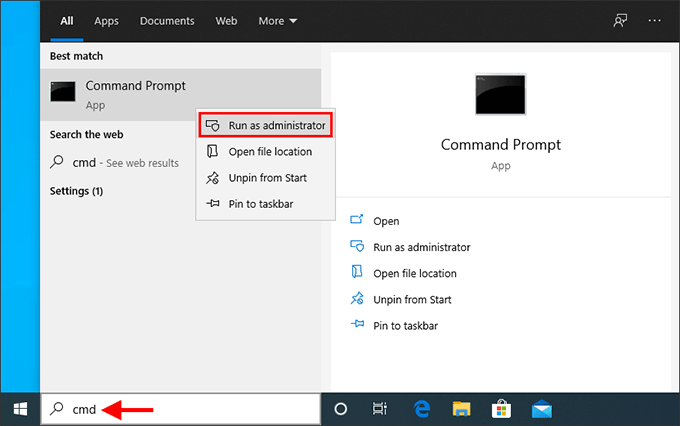
Open Command Prompt as Administrator. Right-click Command Prompt and select Run as administrator.
-
In Command Prompt, enter the following command to open the folder containing your Office setup files:
cd C:\Office2024SetupTip: Copy and paste the command to avoid typing errors.
If you saved the Office Deployment Tool files somewhere else, replace
C:\Office2024Setupwith the correct folder path.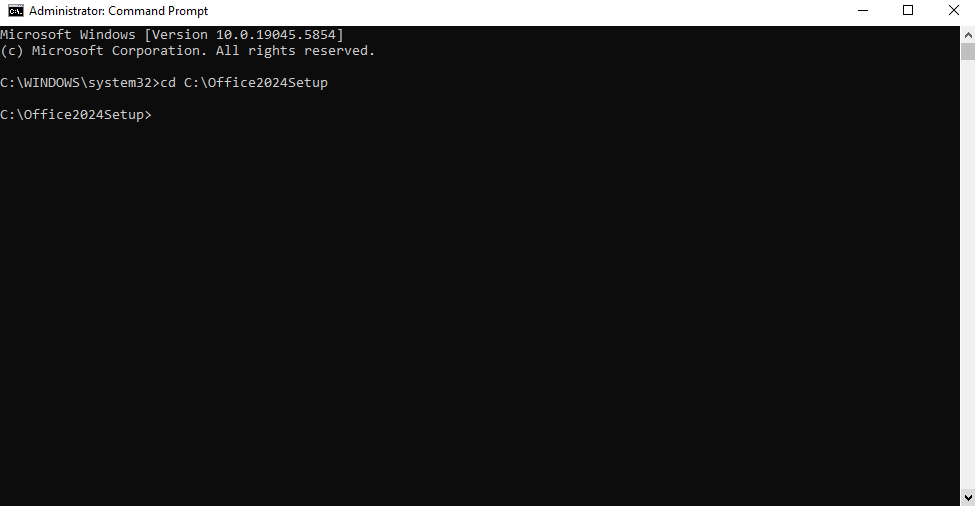
-
Run the following command to begin installing Office LTSC 2024 Professional Plus:
setup.exe /configure configuration.xmlThis command must be run from the folder containing both
setup.exeandconfiguration.xml.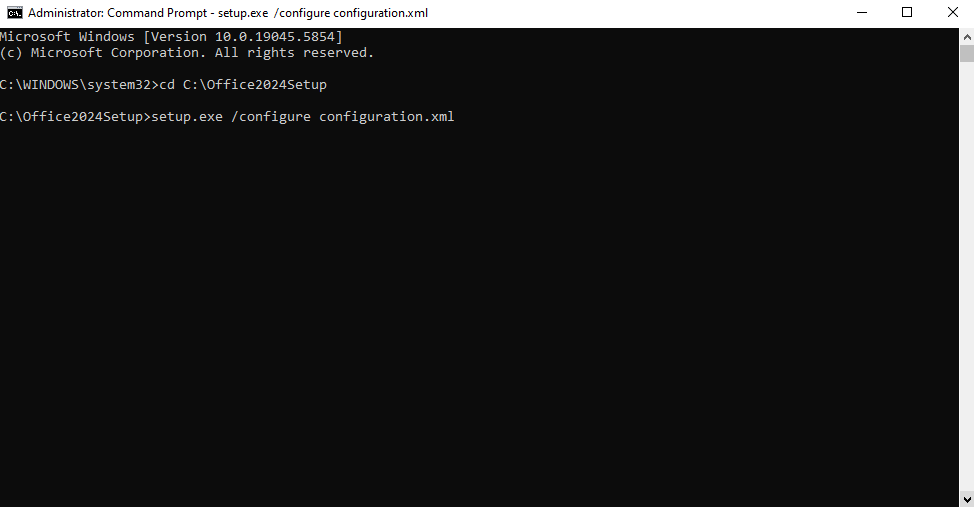


Important: You may not see a traditional Office installation window. The Office Deployment Tool can download and install Office silently in the background.
Installation is normally complete when:
- Command Prompt returns to the command line.
- Office applications appear in the Windows Start menu.
- You can open Word, Excel, PowerPoint or Outlook successfully.
Office LTSC 2024 Offline Installer and Installation Files
The Office Deployment Tool can also be used when you want to download the Office LTSC 2024 installation files before installing Office. This can be useful when preparing an offline installation or installing Office on multiple PCs.
The standard command used in this guide:
setup.exe /configure configuration.xmldownloads the required files and installs Office according to your XML configuration.
For environments where you need to download the installation files separately first, Microsoft's Office Deployment Tool also supports a separate download stage. Advanced users and IT administrators should follow Microsoft's current Office Deployment Tool documentation when preparing an offline deployment.
Important: An offline copy of the installation files does not remove the requirement for a valid Office LTSC 2024 Professional Plus licence and product key.
How to Activate Office LTSC 2024 Professional Plus
Step 4: Activate Microsoft Office LTSC 2024 Professional Plus
- Open Word, Excel or another Office application.
- If prompted, open the Activation Wizard.
- Select the activation option provided for your licence.
- If telephone activation is required, select I want to activate the software by telephone.
- Select your country or region.
- Follow the instructions provided by the Microsoft Activation Wizard.
- Enter the required confirmation information to complete activation.
After successful activation, Office LTSC 2024 Professional Plus should show as an activated product within the Office application.
If you purchased your licence from Brytesoft, you can visit the Office LTSC 2024 Professional Plus product page for product information.
Office LTSC 2024 Professional Plus Installation Summary
| Step | Action |
|---|---|
| 1 | Remove incompatible or older Office installations. |
| 2 | Download and extract the Microsoft Office Deployment Tool. |
| 3 | Create the configuration.xml file for Office LTSC 2024 Professional Plus. |
| 4 | Run setup.exe /configure configuration.xml from Command Prompt. |
| 5 | Open an Office application and complete activation if prompted. |
Office LTSC 2024 Professional Plus Download and Installation Troubleshooting
If Office LTSC 2024 Professional Plus does not download, install or activate correctly, check the common problems below.
1. Office LTSC 2024 Configuration File Not Found

Possible cause: Command Prompt is using the wrong folder path, or configuration.xml is not located in the same folder as setup.exe.
Solution:
- Open Command Prompt as Administrator.
- Confirm the correct folder path.
- If your files are stored in
C:\Office2024Setup, run:
cd C:\Office2024Setup- Confirm that
setup.exeandconfiguration.xmlare both inside the folder. - Check that Windows has not accidentally saved the file as
configuration.xml.txt.
2. Office LTSC 2024 Installation Failed or Conflicting Office Version Detected

You may also see a message similar to:
“We can't install. To install this product, first uninstall the following product(s) and try again.”

Cause: An existing Microsoft 365, Office, OneNote or older MSI-based Office installation may conflict with Office LTSC 2024.
Solution:
-
Use the Microsoft Get Help app.
Press Windows + S, search for Get Help and open the application.
Search for Uninstall Office and follow Microsoft's guided removal process. - Restart your computer after the removal process completes.
-
Check for remaining Microsoft Office applications through:
- Settings > Apps > Installed Apps
- Control Panel > Programs and Features
- If Microsoft 365 Apps, OneNote or another incompatible Office edition remains installed, remove it.
- Restart your PC and try the Office LTSC 2024 installation again.
3. Office LTSC 2024 Download Does Not Start
Possible causes:
- Command Prompt was not opened with administrator privileges.
- The configuration XML contains a formatting error.
- The computer cannot connect to Microsoft's Office download servers.
- Security software, firewall settings or network policies are blocking the download.
Solution:
- Confirm that your internet connection is working.
- Run Command Prompt as Administrator.
- Check that your XML configuration contains
Channel="PerpetualVL2024"andProduct ID="ProPlus2024Volume". - Confirm that the configuration file is saved as
configuration.xmlrather than a text file. - Try the command again after restarting Windows.
4. Office LTSC 2024 Installs but Word or Excel Does Not Appear
If Command Prompt completes but you cannot find Word, Excel or other Office applications:
- Open the Windows Start menu and search for Word or Excel.
- Restart your PC after installation.
- Check Settings > Apps > Installed Apps for Microsoft Office LTSC 2024.
- If Office is not listed, repeat the installation and check the configuration file for errors.
5. Office LTSC 2024 Activation Does Not Complete
If Office installs successfully but remains unactivated:
- Confirm that the product key corresponds to Office LTSC 2024 Professional Plus.
- Check the product name displayed under File > Account inside an Office application.
- Restart the Office application after entering the key.
- Follow the Activation Wizard if additional activation steps are required.
6. MAK Activation Limit Reached

A MAK-related activation message means the licence has encountered an activation restriction.
If your licence instructions specify telephone activation:
- Open an Office application.
- Open the Activation Wizard.
- Select I want to activate the software by telephone.
- Follow Microsoft's instructions for your country or region.
If the issue continues and you purchased the licence from Brytesoft, contact Brytesoft support with your order details and the exact activation error displayed on screen.
Office LTSC 2024 Professional Plus vs Other Office Editions
Office LTSC 2024 Professional Plus is designed for users and organizations that want a perpetual Office installation with a fixed feature set rather than the continuously updated Microsoft 365 subscription model.
If you are deciding between Office versions, these guides may help:
Get Office LTSC 2024 Professional Plus
If you need a licence for the software covered in this guide, visit the Microsoft Office LTSC 2024 Professional Plus product page.